레이블이 rtc인 게시물을 표시합니다. 모든 게시물 표시

2011년 12월 30일 금요일

SCM - 소스코드 엑세스 로그

https://jazz.net/wiki/bin/view/Main/SCMScaa


In your RTC deployment, you may wish to log access to the File content in your repository, for traceability rationale. While this support is disabled by default, it can be enabled through the use of log4j.

To enable logging, uncomment the following section from the bottom of of jazz/server/conf/jazz/log4j.properties


#log4j.appender.scm_scaa=org.apache.log4j.RollingFileAppender #log4j.appender.scm_scaa.layout=org.apache.log4j.PatternLayout #log4j.appender.scm_scaa.layout.ConversionPattern=%m %n #log4j.appender.scm_scaa.File=scaa_content.log #log4j.appender.scm_scaa.MaxBackupIndex=10 #log4j.appender.scm_scaa.MaxFileSize=7000KB 
#log4j.logger.scm_scaa=TRACE, scm_scaa


This will create a scaa_content.log file in jazz/server/logs. The log will be rotated between 10 files of 7MB each.
Logging will occur as users access content from the server. Nothing will be written to the logs if there is no user activity.
To process this data for use in another tool, you should convert this configuration FileAppender and pipe the file into the script or program.

The format of the log entries are as follows:


SCAA:{0}/{1},{2},{3},{4}/{5},{6}


where :
  • {0} is the contributor's userid
  • {1} is the item type (in RTC 2.0, most commonly FileItem?)
  • {2} is the last segment of the item's path (Foo.java)
  • {3} is the item's identifier
  • {4} is the item's state or version identifier
  • {5} is the component's name or label
  • {6} is the component's identifier
While there is not a huge overhead to logging content access, the logfiles can grow fairly large quickly. In the default configuration, it may take less than a day for the 10 logfiles to completely rollover, depending on the number of developers and build engines your server hosts.

RTC를 이용한 Code Review Process

Project configuration
  • Precondition : "Require Work Item Approval" 
  • for "Deliver (client)" operation 
  • for "Everyone" role. 
  • In the "Required approvals", for the "Review" type, at least one from "Everyone" role (or "Team Member" role) is set. 
  • "User may overrule" may also be checked if not all code delivery may require a review process. 


Scenario
There are three developers - D1, D2 & D3 - all using RTC Eclipse client.

  1. D1 does the code change for files f1 & f2 in her local workspace and saves them. f1 and f2 appears as unresolved in the pending changes view. 
  2. D1 checks-in f1 & f2 into a new change set "CS". 
  3. Right clicks on "CS" and select "Submit for Review" menu option and associate to a WI (existing or a new one) and select approvers - D2 as the approver for f1 review (subject field is used to tell what to review) and D3 as approver for f2 review. 
  4. The approval/Review process will be in the pending state. 
  5. D2 & D3 gets intimation of the review task assigned to them through a query - "Pending approvals for me". 
  6. D2 opens the WI and in the Links section, double clicks on the f1 in the change set and see the diff in the Change Explorer. Does the review. Optionally, adds comment for D1 in the discussion field of the WI. Changes the Review approval state from pending to approved. 
  7. D3 follows the same process as D2 but rejects because the f3 code change is not acceptable. Changes the Review approval state from pending to rejected. 
  8. D1 gets the review comment via email/feed - because D1 is the owner and the subscriber of the WI. 
  9. D1 fixes the code in f2 based on D3's review and checks in to the same changeset. 
  10. D1 adds D3 again for the new review approval in the same WI. 
  11. D3 gets intimation of the review task assigned to him through a query - "Pending approvals for me". 
  12. D3 opens the WI and in the Links section, double clicks on the f2 in the changeset and see the diff in the Change Explorer. Does the review. Optionally, adds comment for D1 in the discussion field of the WI. Changes the Review approval state from pending to approved. 
  13. D1 gets the review comment via email/feed - because D1 is the owner and the subscriber of the WI. 
  14. D1 delivers the changeset (or invokes "Complete" action on the changeset) because all the approvals in the WI are in approved state. 
  15. The complete history of the code review process (rejected ones, approved ones) are in the "Approvals" tab.

제안 https://jazz.net/wiki/bin/view/Main/SCMChangeSetReview
-

SCM - 베이스라인 BOM CLI


https://jazz.net/wiki/bin/view/Main/SCMCommandLineBillOfMaterials

This story is to support the following workflow with the RTC Command line:
  1. A user will be able to navigate to a baseline or snapshot using scm list command
  2. A user will be able to run a command to output a listing which describes the configuration as follows
    • for every item in the snapshot/baseline, we print a row which describes the path, item-id & state-id
A user will be able to extract a particular content from the repository using the state-id as a selector


참조 : When storing a reference to another item, RTC store an item handle, which is: item type + item UUID [+ optional state id (if referring to a particular state of an auditable item)].

IItemHandle handle = IComponent.ITEM_TYPE.createHandle(uuid, null);
ITeamRepository repo = ...;
IItem item = repo.itemManager.fetchCompleteItem(handle, IItemManager.DEFAULT, null);
IItemType type = item.getItemType();
System.out.println("Simple type name: " + type.getName());
System.out.println("Type's namespace: " + type.getNamespaceURI()); 

-
웹브라우저 이용시
- copy the UUID
- paste it into a URL of the form:
/resource/itemOid/com.ibm.team.scm.Component/_DC6QYM0yEd2CTNaxDdYRfg?_mediaType=text/xml
(replacing the UUID there with yours)
- open this in a web browser
- there the XML should indicate the type


  • URI format for IVersionedContentService is:

//content/////

  • URI format for IFilesystemContentService is:
https://:/jazz/service/com.ibm.team.filesystem.service.internal.rest.IFilesystemContentService/-/COMPONENT_UUID/filename.txt?itemId=RESOURCE_UUID&stateId=RESOURCE__STATE_UUID&platformLineDelimiter=CRLF

RTC OSLC CM 2.0 REST API

출처 : https://jazz.net/wiki/bin/view/Main/WorkItemAPIsForOSLCCM20

This document is the next version of ResourceOrientedWorkItemAPIv2 and describes services offered by RTC 3.0.1 Work Items Service provider implementing OSLC CM 2.0 specifications. This version of service provider is much enhanced from earlier version that has more kinds of resource formats, operations etc. Most of the services and operations existed in previous version are still supported but change is only in semantics which are programmatic friendly. This document explains how Work item service provider can be consumed by referring to OSLC CM 2.0 specifications with good examples. The example snippets assume that you are authenticated to a server configured for form-based auth. These examples can be tried on a browser or by using POSTER plug in on Fire Fox.


2011년 12월 28일 수요일

RAM과 RTC의 통합 유스케이스

 출처 : http://www-01.ibm.com/support/docview.wss?uid=swg21497832


UC1, UC2, UC3, UC4 - For Rational Asset Manger V7.5.1, use Rational Team Concert V2.0.0.2, interim fix 006 and later, V3.0 and later, V3.0.1 and later.


  • UC5 : The Rational Asset Manager server uses the included copy of Rational Team Concert to manage the workflows for asset lifecycles.

UC5 - For Rational Asset Manger V7.5.1, use Rational Team Concert V2.0.0.2, interim fix 006 and later. During server setup, you can specify whether to use the included instance of Rational Team Concert. Rational Asset Manager V7.5 and later include a licensed copy of Rational Team Concert V2.0.0.2.

-

ClearTeam Explorer와 RTC의 통합 설치

https://jazz.net/library/article/746


Rational Team Concert 3.0.1.1 extends the ClearCase Bridge capabilities to the ClearTeam Explorer interface, an Eclipse-based interface to ClearCase version 8.0 that supports both web views and dynamic views. This document provides instructions for installing the ClearTeam Explorer to Rational Team Concert.

These installation instructions are specific to the ClearCase Bridge; for more of an overview of the various options available to connect ClearCase (and ClearQuest) to Rational Team Concert and how to use them, please see TN0006: Deploying Rational Team Concert into a ClearCase/ClearQuest Environment.

For more information about using the ClearCase Bridge, please see Using the ClearCase Bridge to Rational Team Concert in the Rational Team Concert Information Center.

More Information

Note that the minimum Rational Team Concert version required for the ClearTeam Explorer bridge is Rational Team Concert 3.0.1.1.

To install Rational Team Concert and Rational ClearTeam Explorer using IBM Installation Manager:

  1. Add the repository locations for each of Rational Team Concert and the ClearTeam Explorer extension offering.
  2. Install Rational Team Concert and ClearTeam Explorer together by selecting Rational Team Concert - Client for Eclipse IDE and IBM Rational ClearTeam Explorer Extension from the list of installation packages.
    Note that you can also install Rational Team Concert and then Rational ClearTeam Explorer one by one.

To update Java Runtime Environment of the Eclipse shell:

In order to run ClearTeam Explorer in the same Eclipse shell, it is required to use Java 6.0 Runtime Environment.
  1. Install Java 6.0 Runtime Environment. Please refer System Requirements for Rational Team Concert 3.0.1, Rational Quality Manager 3.0.1 and Rational Requirements Composer 3.0.1 to find appropriate patch releases of Java 6.0 Runtime Environment. Note that you can find IBM JRE 6.0 when you install the Rational ClearCase 8.0. The location of IBM JRE is:
    • C:\Program Files\IBM\RationalSDLC\common\JAVA5.0\jre (Note that the directory path indicates the Java version is 5.0, but it IS Java 6.0 runtime environment.)
    • /opt/rational/common/java/jre (on Linux platforms)
  2. Open eclipse.ini (e.g. C:\Program Files\IBM\TeamConcert on Windows by default) in a text editor and update the path to Java 6.0 Runtime Environment and save it.

-

CC/CQ와 RTC의 Synchronizer 통합 도움말

https://jazz.net/library/article/581


Summary

This document provides guidance for deploying Rational Team Concert into an existing ClearCase/ClearQuest environment. In particular, it provides guidance for deploying the ClearCase and ClearQuest Synchronizers to synchronize the information stored in Rational Team Concert and ClearCase/ClearQuest.

Rational Team Concert also includes bridges to ClearQuest and ClearCase which allow you to associate ClearQuest records or source control information with work items in the Jazz repository, without synchronizing data.


ClearCase Synchronizer

The primary deployment principle for the ClearCase synchronizer is that you should configure your ClearCase and Rational Team Concert deployments independently, i.e. configure ClearCase for the ClearCase users (ignoring Rational Team Concert) and configure Rational Team Concert for the Rational Team Concert users (ignoring ClearCase). Then deploy the ClearCase Synchronizer on a machine with efficient read/write access via a ClearCase dynamic view to the ClearCase stream/branch that is to be synchronized with a Rational Team Concert stream.

http://publib.boulder.ibm.com/infocenter/clmhelp/v3r0m1/topic/com.ibm.team.connector.scm.cc.doc/topics/c_sync_intro.html

Rational Team Concert™에는 Rational® ClearCase® 소스 제어와 Rational Team Concert source control 간의 양방향 동기화를 지원하는 ClearCase Synchronizer와, Rational Team Concert source control로의 히스토리를 포함한 Rational ClearCase 소스 제어의 단방향 가져오기를 지원하는 ClearCase Importer가 포함되어 있습니다.

 ClearCase Synchronizer를 사용하려면 먼저 Rational Team Concert source control 및 Rational ClearCase 간의 동기화를 지원하는 하나 이상의 Rational ClearCase 호스트를 구성해야 합니다. 그런 다음, Rational ClearCase에서 가져오거나 Rational Team Concert source control에서 내보낼 파일 및 폴더를 포함하는 하나 이상의 ClearCase Synchronized Stream을 정의하십시오. 이 단계가 완료된 후 사용자가 어느 환경에서든 이러한 파일과 폴더를 수정할 수 있습니다. 일반적인 자동 동기화는 두 환경 모두를 최신 상태로 유지합니다.
동기화 프로세스는 Rational Team Concert source control에서 작성된 변경사항을 검색하고 이들을 새 버전으로 Rational ClearCase에 체크인합니다. 또한 Rational ClearCase에서 작성된 변경사항을 검색하고 이들을 ClearCase Synchronized Stream이라는 Rational Team Concert source control 스트림으로 전달합니다. 파일 또는 폴더가 Rational ClearCase 및 Rational Team Concert source control 모두에서 수정되었기 때문에 충돌이 발생하면 병합 작업공간으로 알려진 특수 저장소 작업공간에 대한 수신 변경 세트로서 표시됩니다. 병합 작업공간 소유자(일반적으로 팀 리더)가 충돌을 해결한 후 병합된 변경 세트를 동기화된 스트림으로 전달하며, 동기화된 스트림은 모든 팀 구성원이 액세스할 수 있습니다.

ClearQuest Synchronizer

Teams sometimes want different tools and processes than other teams or the enterprise. Sometimes the needs of teams across the enterprise are aligned but different schedules make it impossible to coordinate an enterprise-wide shift to new tools or processes. Synchronizers enable different teams within an enterprise to make different tool and process decisions while still sharing development assets. In the case of the ClearQuest Synchronizer to Rational Team Concert those assets are work items, e.g. defects, enhancement requests, change requests, tasks, etc. The synchronizer is perfect for situations where some teams want the tight integration of Rational Team Concert but must share those work items with other teams using Rational ClearQuest.
Consider a development team that enjoys the integration of work items with build and source control in Rational Team Concert. Perhaps their support team enters customer reported issues through ClearQuest and the team needs to see them. Or, consider an enterprise that gathers project metrics from a centralized ClearQuest database in which every team must make their work visible.

If a team doesn't care to use the work item component in Rational Team Concert they could elect to continue using ClearQuest directly. Similarly, a team may be able to access Rational Team Concert work items, perhaps through the web UI, just as easily as ClearQuest.

One of the goals of connecting the two systems is to allow teams some control over their process. This implies that there will not be complete alignment between a process specification's work item definition and a ClearQuest schema's record type. Fields, enumeration choices, states, and even the variety of types available may differ. The synchronizer cannot infer the semantics of the two processes or distill the key data to synchronize -- this requires someone knowledgeable of both the Jazz process specification and the ClearQuest schema to produce a mapping. The synchronizer captures this mapping in the form of synchronization rules. The more similar the two processes the easier it will be to create synchronization rules, but in some cases this will require significant effort and could involve making tradeoffs and converging aspects of the process definitions.

http://publib.boulder.ibm.com/infocenter/clmhelp/v3r0m1/topic/com.ibm.team.connector.cq.doc/topics/c_configuring_and_using_the_clearquest_connector.html

ClearQuest® Synchronizer를 사용하여 Rational Team Concert™ 작업 항목과 ClearQuest 레코드 사이에 정보를 동기화할 수 있습니다.

Rational Team Concert 작업 항목 컴포넌트를 사용하여 결함, 태스크 및 개선사항 요청을 제출하고 추적할 수 있지만, 팀이 ClearQuest 사용자 데이터베이스도 사용해야 할 수 있습니다. ClearQuest Synchronizer로 두 도구에서 모두 작업하고 데이터를 공유할 수 있습니다. 동기화 오퍼레이션을 통해 ClearQuest Synchronizer는 ClearQuest 레코드(예: 결함)를 Rational Team Concert 작업 항목에 맵핑합니다. 사용자가 ClearQuest 레코드를 작성하거나 수정할 때, ClearQuest Synchronizer가 대응하는 작업 항목을 작성 또는 수정합니다. 작성 및 수정 변경이 작업 항목에서 ClearQuest 레코드로 이동합니다.


CC와 RTC의 Bridge 통합 도움말

http://publib.boulder.ibm.com/infocenter/clmhelp/v3r0m1/index.jsp?topic=%2Fcom.ibm.team.connector.scm.cc.doc%2Ftopics%2Fc_bridge_intro.html


Rational Team Concert™에는 Jazz™ 작업 항목과 Rational® ClearCase® UCM 활동 또는 Rational ClearCase 요소 버전 간 연관을 지원하는 ClearCase Bridge가 포함되어 있습니다.

ClearCase Bridge를 사용하려면 Rational ClearCase Remote Client(웹 보기용) 또는 Rational SCM 어댑터(동적 보기용)가 Rational Team Concert의 설치와 동일한 eclipse 쉘에 설치되어야 합니다. 제품 버전 및 사용 가능한 기능에 대한 자세한 정보는 다음을 참조하십시오. 

ClearCase Bridge를 사용하여 작성된 연관에 대한 링크 정보는 Jazz 저장소에 저장됩니다.


ClearCase Bridge는 Jazz 작업 항목과 Rational ClearCase UCM 활동 간의 연관을 지원합니다.

ClearCase Bridge는 Jazz 작업 항목과 Rational ClearCase 요소 버전 간의 연관을 지원합니다.

ClearCase Bridge의 이 릴리스에는 다음과 같은 제한사항이 있습니다.

CQ와 RTC의 Bridge 통합 도움말

http://publib.boulder.ibm.com/infocenter/clmhelp/v3r0m1/index.jsp?topic=%2Fcom.ibm.team.rcm.doc%2Ftopics%2Fc_configuring_and_using_rcm.html


Jazz™ 작업 항목을 사용하여 결함, 태스크 및 개선 요청을 제출 및 추적할 수 있습니다. 팀에는 ClearQuest 사용자 데이터베이스에 저장된 ClearQuest 레코드에 대한 액세스도 있을 수 있습니다. ClearQuest Bridge를 사용하면, ClearQuest 레코드를 Jazz 작업 항목에 연관시켜 agile 환경의 레코드를 작업할 수 있습니다.

ClearQuest Bridge 및 ClearQuest Synchronizer 모두에서는 레코드와 작업 항목을 연관시킬 수 있습니다. 그러나 ClearQuest Bridge에서는 동기화 규칙을 작성 및 유지보수하거나 여러 저장소에 데이터를 복제할 필요가 없습니다.

ClearQuest Bridge를 사용할 수 있으려면, ClearQuest and Jazz 환경을 구성해야 합니다. ClearQuest 및 Jazz 환경 구성에 필요한 전제조건 및 단계에 대해서는 ClearQuest Bridge 구성의 내용을 참조하십시오.

Rational Team Concert 또는 ClearQuest에서 작업 항목 및 레코드 사이의 연관을 작성할 수 있습니다. 연관을 작성하는 위치에 상관없이 작업 항목과 레코드 모두에는 링크가 추가됩니다. 링크 위에서 마우스를 움직여 추가 정보를 보거나 링크를 클릭하여 연관된 아티팩트를 여십시오.

SCM - 윈도우탐색기 통합

Use Case View

  1. 저장소 연결 생성
  2. 팀 초대 수용
  3. 저장소 작업공간 생성
  4. 샌드박스 생성
  5. 샌드박스로 저장소 작업공간 로드
  6. 샌드박스 루트 바로 밑 폴더 공유 및 연결해제
  7. 파일 및 폴더의 체크인 및 작업취소
  8. 파일 잠금 및 잠금 해제
  9. 파일 및 폴더의 무시 및 무시해제
  10. 변경세트 전달 

SCM - 윈도우탐색기 통합 설치

출처 : https://jazz.net/wiki/bin/view/Main/InstallAndUsingIntegration

시스템 요구사항

  1. Windows XP (32 bit), Windows 7 (32/64 bit)
  2. VC runtime 2008, 2008 SP1, 2010.
  3. .Net framework 3.5 SP1 or greater.
  4. IM version 1.4.4 or greater
  5. Administrator privileges.

설치 절차

  1. As administrator, open IM and install the offering
    http://jazzweb.beaverton.ibm.com/rtc/windows.shell.integration.jazz/40/
  2. Restart the machine.

설치 제거 오류 해결 - 윈도우 7 (64비트)

[-HKEY_CLASSES_ROOT\com.ibm.team.explorer.extensions.deskband.PendingChangesExtn]
[-HKEY_CLASSES_ROOT\CLSID\{05ADE7DD-0AEA-45EA-9A2D-36C6637B9D03}]
[-HKEY_CLASSES_ROOT\com.ibm.team.explorer.extensions.namespace.WinRTCExtension]
[-HKEY_CLASSES_ROOT\CLSID\{262D4CBA-FE4A-40A2-88C7-F7F09370C763}]
[HKEY_LOCAL_MACHINE\SOFTWARE\Microsoft\Windows\CurrentVersion\Shell Extensions\Approved]
"{262d4cba-fe4a-40a2-88c7-f7f09370c763}"=-

[-HKEY_LOCAL_MACHINE\SOFTWARE\Microsoft\Windows\CurrentVersion\Explorer\Desktop\NameSpace\{262d4cba-fe4a-40a2-88c7-f7f09370c763}]
[-HKEY_CLASSES_ROOT\Extension.RTCContextMenuExtension]
[-HKEY_CLASSES_ROOT\CLSID\{95C099F3-CB09-4AA6-8BCE-829B732980FF}]
[-HKEY_CLASSES_ROOT\*\shellex\ContextMenuHandlers\Rational Team Concert]
[-HKEY_CLASSES_ROOT\Directory\shellex\ContextMenuHandlers\Rational Team Concert]
[-HKEY_CLASSES_ROOT\com.ibm.team.explorer.extensions.iconoverlay.UnresolvedOverlayHandler]
[-HKEY_CLASSES_ROOT\CLSID\{4C5371EC-F8E6-4B30-AA9D-4CC5932299B3}]
[-HKEY_CLASSES_ROOT\com.ibm.team.explorer.extensions.iconoverlay.IgnoredOverlayHandler]
[-HKEY_CLASSES_ROOT\CLSID\{A0F419EF-C45A-4D61-B572-AAAC90DF0D83}]
[-HKEY_CLASSES_ROOT\com.ibm.team.explorer.extensions.iconoverlay.SharedOverlayHandler]
[-HKEY_CLASSES_ROOT\CLSID\{CE336810-9DDF-418E-A979-BE59657A7D46}]
[-HKEY_CLASSES_ROOT\com.ibm.team.explorer.extensions.iconoverlay.OutgoingOverlayHandler]
[-HKEY_CLASSES_ROOT\CLSID\{2F79203E-30C4-459B-83E4-CEE0ACB2A279}]
[-HKEY_CLASSES_ROOT\com.ibm.team.explorer.extensions.iconoverlay.IncomingOverlayHandler]
[-HKEY_CLASSES_ROOT\CLSID\{0C6E2ABC-758F-4921-8B69-F39FA75D8309}]
[-HKEY_CLASSES_ROOT\com.ibm.team.explorer.extensions.iconoverlay.ConflictOverlayHandler]
[-HKEY_CLASSES_ROOT\CLSID\{8AF286EF-D858-4182-BF09-5B1839DE928E}]
[-HKEY_CLASSES_ROOT\com.ibm.team.explorer.extensions.iconoverlay.LockedOverlayHandler]
[-HKEY_CLASSES_ROOT\CLSID\{92505552-9344-4699-B89D-66B53AF62386}]
[-HKEY_LOCAL_MACHINE\SOFTWARE\Microsoft\Windows\CurrentVersion\Explorer\ShellIconOverlayIdentifiers\RTC_Ignored]
[-HKEY_LOCAL_MACHINE\SOFTWARE\Microsoft\Windows\CurrentVersion\Explorer\ShellIconOverlayIdentifiers\RTC_Outgoing]
[-HKEY_LOCAL_MACHINE\SOFTWARE\Microsoft\Windows\CurrentVersion\Explorer\ShellIconOverlayIdentifiers\RTC_Shared]
[-HKEY_LOCAL_MACHINE\SOFTWARE\Microsoft\Windows\CurrentVersion\Explorer\ShellIconOverlayIdentifiers\RTC_Unresolved]
[-HKEY_LOCAL_MACHINE\SOFTWARE\Microsoft\Windows\CurrentVersion\Explorer\ShellIconOverlayIdentifiers\RTC_Incoming]
[-HKEY_LOCAL_MACHINE\SOFTWARE\Microsoft\Windows\CurrentVersion\Explorer\ShellIconOverlayIdentifiers\RTC_Conflict]
[-HKEY_LOCAL_MACHINE\SOFTWARE\Microsoft\Windows\CurrentVersion\Explorer\ShellIconOverlayIdentifiers\RTC_Locked]

2011년 12월 20일 화요일

SCM - MS SCCI 지원

MS-SCCI(MicroSoft Source Code Control Interface)

Use Case View

  •  "Add to archive": 파일을 SCM에 추가함. 
    • 폴더 경로가 공유루트의 일부일 때: 파일을 새 변경세트에 체크인하고 전달함.
    • 폴더 경로가 공유루트가 아닐 경우: 공유 마법사에서 폴더 경로상의 공유 루트 폴더를 선택하고 파일을 변경세트에 체크인하고 전달함. 
  • "Checkout": 플로우 대상 스트림에 해당 파일을 잠금.
  • "Check in": 새 변경세트에 체크인하고 전달하고 잠금 해제함.
  • "Undo checkout": 현 사용자가 파일에 잠금을 한 경우 잠금을 해제하고, 변경사항을 원상복구함.
  • "Get History": 별도 대화상자에 파일에 대한 히스토리 뷰를 제공함. 


Logical View


Implementation View

  • Native COM Plugin (JazzMSSCCIProvider.dll) – C++ code
  • RTC's Default SCM subsystem – Managed code - C# (JazzScmScci.dll) 


Process View

Deployment View

레지스트리 항목:
  • 키: "HKLM\Software\IBM\JazzMSSCCIProvider\SCCServerName"
    값: "Jazz MSSCCI Provider"
  • 키: "HKLM\Software\IBM\JazzMSSCCIProvider\SCCServerPath"
    값: "\JazzMSSCCIProvider.dll"
  • 키: "HKLM\Software\SourceCodeControlProvider\InstalledSCCProviders\Jazz MSSCCI Provider"
    값: "Software\IBM\JazzMSSCCIProvider"
  • 키: "HKLM\Software\SourceCodeControlProvider\ProviderRegKey"
    값: "Software\IBM\JazzMSSCCIProvider"
  • CLSID 추가 


https://jazz.net/wiki/bin/view/Main/MSSCCI-RTC

2011년 12월 18일 일요일

RTC 차기 릴리즈 개발 계획 (2012년 6월)

https://jazz.net/projects/rational-team-concert/release-plan/


Milestones and schedule

Milestones are builds that have passed integration testing and will be made available for download and trial. A milestone can be promoted to a beta after an additional week or two of production use.
The milestone and release candidate (RC) schedule is as follows:

  • 2011/08/22 - Milestone 2
  • 2011/09/12 - Milestone 3
  • 2011/10/10 - Milestone 4
  • 2011/10/31 - Milestone 5
  • 2011/11/21 - Milestone 6
  • 2012/01/09 - Milestone 7
  • 2012/01/30 - Milestone 8
  • 2012/02/20 - Release Candidate 0
  • 2012/03/05 - Release Candidate 1 / Beta 1
  • 2012/04/02 - Release Candidate 2
  • 2012/04/23 - Release Candidate 3
  • 2012/05/07 - Release Candidate 4
  • 2012/05/14 - Release Candidate 5
  • 2012/05/21 - Release Candidate 6
This next release of Rational Team Concert is targeted for 2Q 2012.


Overview

Rational Team Concert forms the developer focused role of our Rational solution for Collaborative LifeCycle Management. Rational Team Concert success has grown at a rapid pace and this growth has created the need for managing very large deployments. For the next release, we intend to focus on three areas including improved enterprise deployment, scaling and reliability, enhancements for customers developing complex and embedded systems, and improved consumability and usability.

Themes

The following themes guide the planning of this release:


Application LifeCycle Management - Enterprise Deployment and Reliability: A key advantage of the Jazz platform approach to application lifecycle management is that it can help lower cost of ownership by centralizing the administration of ALM across an enterprise. Our customers are embracing this simpler Jazz platform approach and are deploying much larger communities of users. As more users are deployed, the need for high availability of those services also grows. In this release of Rational Team Concert, we intend to support automated high availability that leverages WebSphere clustering capabilities (169830) Although the primary goal of this work is to automate high availability, the underlying use of clustering will also allow us to begin to exploit horizontal scaling of Rational Team Concert and CLM applications across more distributed servers.


Application LifeCycle Management - Enterprise Scalability: High availability addresses the enterprise need for availability of users but what about the growth in complexity of the projects being managed? In this release we intend to also introduce planning across projects (169425). Plans are currently limited to iterations inside a project area in RTC 3.0.1 but in this release, we intend to allow users with master plans to track tasks in other project areas. The primary use case for this work is to be able to plan development execution of a cross cutting feature that spans more than one RTC project area. Managing more data means managing more queries. To make it easier to manage many query variations in a single query, we intend to allow queries to support input variables (169822). Do you also have external web based data sets that you would like to use as input to work item custom fields? If that is the case, we plan to allow input from external HTTP value set providers (169820) giving you more flexibility in managing enterprise data sets.


Systems Market Support - Variant Management: Many of our customers develop complex or embedded applications that require managing many release variants at the same time. One example of this is when you need to deliver a bug fix to a series of release streams and you need a way to verify you have done this to all the variants of your software. We plan to make it easier to find all the streams where a given change set has been delivered. (169818)


Systems Market Support - Security and Permissions: Often a complex hardware/software development effort involves collaboration across teams spanning outside suppliers who may be delivering parts of a broader solution but all working on the same project area. This requires the ability to provide more flexibility in configuring read access for any combination of users, team areas, and project areas. In this release, we intend to support "access groups", which are a collection of project areas, team areas, and users (170132, 169933) that can be shared at the repository, project area or team area level. A related issue is the need to control visibility to versioned artifacts at the folder or file level and not just at the SCM component level. In this release we intend to make that possible (169819). Some customers also need to be able to delete artifacts for security or other reasons. In RTC 3.0.1 we introduced the ability to delete work items and in this release we intend to add support for deleting versioned SCM artifacts (169816).


Systems Market Support - Workspace Management: More flexible SCM load rules for customers who need to load components into on disk workspaces that are laid out differently than how they are stored in the repository is also planned. We intend to allow users to save complex load rules to a file and store them for re-use across teams. You can read more about this feature in our New & Noteworthy.


Consumability and Usability - Simple Versioning: Many extended team members can benefit from taking advantage of versioning, so it would be beneficial to these users to keep the interfaces to versioning simple and easy to use. We intend to add a Windows 7 Explorer integration to provide SCM services targeted at non-developers with simple locking and versioning support using a familiar file system view. (169838).


Consumability and Usability - Kanban Method Taskboard: Our customers employing lean and agile methods have also asked us to provide Kanban Method support in RTC. Kanban Method helps to optimize the ideal flow of work through the system using a "pull" model and answers questions like "Where is capacity available" and "Am I exceeding my desired limits?" We intend to deliver this by providing a Kanban Method taskboard planning view which will allow limits to be set on state flows in the taskboard viewer. (170002)


Consumability and Usability - Any platform. Any IDE. One ALM Toolset: We intend to continue to extend our rich developer experience from the Rational Team Concert Client for Microsoft Visual Studio IDE (169839) as well as Eclipse based IDE's such as Rational Developer for System z/Power Systems (169843). We also plan to make performance and usability enhancements for mainframe users of the ISPF client (169841).


Consumability and Usability - Enhanced Build, Promotion and Deployment: We intend to make available the dependency build, promotion and deployment capabilities previously only available on z/OS on other platforms, starting with IBM i (169845). In addition we plan to enhance build, promotion and deployment by allowing build output (binaries) to be stored in the SCM (169817).


Consumability and Usability - Hudson Build Engine Support: Rational Team Concert supports incremental adoption which is a key aspect of consumability for different project needs. In keeping with this theme, we intend to extend support for Hudson as a build engine for RTC which should make migration of your build easier if you choose to adopt Rational Team Concert. (169829). With these planned changes we intend to allow development teams to have a built-in choice of build engines that best meets their needs from continuous integration through enterprise solutions such as the Jazz build engine, Hudson, Microsoft Build Engine (MS-Build) and Rational Build Forge. You can use any of the build engines and have RTC manage build health and reporting.
For more details about the corresponding plan items for these themes, view the detailed release iteration plan.


Notices

References in this material to IBM products, programs, or services do not imply that they will be available in all countries in which IBM operates. This material, including any plans contained in the material, may change at any time at IBM's sole discretion, based on market opportunities or other factors, and are not intended to be a commitment to future content, including product or feature availability, in any way. Statements regarding IBM's future direction or intent are subject to change or withdrawal without notice and represent goals and objectives only. Please refer to Terms of Use for more information.
© Copyright IBM Corporation 2008-2011. All rights reserved.

RTC_SCM_리눅스_GUI_&_CMD_사용법.ppt


개발환경 및 상황따른 사용법
4상황 1. 리눅스에서 Eclipse UI를 이용한 방법
4상황 2. 리눅스 커맨드를 이용한 작업
4상황 3. 리눅스 커맨드와 이클립스를 혼용하여 사용하는 방법
4상황 4. 리눅스 커맨드와 이클립스(Tracking Mode)를 혼용하여 사용하는 방법

RTC scm 커맨드 사용법

저장소 연결 & 로그인
scm login -n ccmhost -r https://ccmhost.mycompany.com:9443/ccm -u jazzy

참고: 로그아웃
scm logout -r ccmhost

참고: 프로젝트 영역 목록 보기
scm list projectareas -r ccmhost

참고: 팀 영역 목록 보기
scm list teamareas -r ccmhost


참고: 스트림 목록 보기 (소유자 : 팀영역)
scm list streams -r ccmhost


콤포넌트 만들기(팀 스트림은 미리 GUI를 통해 생성해 둔다)
scm create component "Squawk"(콤포넌트) "Squawk CMD"(스트림) -r ccmhost

개인 리파지토리 작업공간 만들기
scm create workspace "jazzy on Squawk CMD"(개인 리파지토리 작업공간) -s "Squawk CMD"(팀 스트림) -r ccmhost

PC 개인 작업 공간으로 서버상의 개인 리파지토리내 파일 다운로드
(.metadata 디렉토리 생성됨)
scm load -d c:\workspace\CMD -r ccmhost "jazzy on Squawk CMD"(갠 리파지토리 작업 공간) "Squawk"(콤포넌트)

PC 개인 작업 중인 파일을 서버상의 개인 리파지토리에 업로드하여 공유
scm share -r ccmhost "jazzy on Squawk CMD"(개인 리파지토리 작업 공간) "Squawk"(콤포넌트) Squawk(콤포넌트 대응 루트폴더명)

팀 스트림으로 개인 리파지토리내 공유용 변경 세트 전달하여 팀에 공유
scm deliver -r ccmhost -s "jazzy on Squawk CMD"(From 개인 리파지토리 작업 공간)

User B : GUI를 통해 Repository Workspace를 만들고 Load into SandBox
Dog.cpp 파일 수정 후 개인 리파지토리 작업공간들 변경 상태 파악 (Pending Changes)
scm status

참고: 비교
scm diff -r ccmhost file Squawk/CoreSquawk/Dog.cpp baseline 1003(최초 생성된 베이스라인 식별번호)


개인 리파지토리 작업공간으로 변경내용 체크인 및 변경세트 작성
scm
checkin Squawk(루트 폴더내 변경 사항)

변경세트 주석 붙이기
scm
changeset comment 1004(변경세트 식별번호) "Dog translation 01"

팀 스트림으로 변경 세트 전달하여 공유
scm
deliver -r ccmhost -s "jazzy on Squawk CMD"(From 개인 리파지토리 작업공간)
----------------------------------------------------------------------------
다른 사용자가 같은 파일을 수정하고 먼저 팀스트림으로 전달한 경우


User B : Pending Changes GUI를 사용하여 scm 작업
User B : GUI Pending Changes를 통해 Accept
User B : 파일 수정 후 GUI Pending Changes를 통해 SandBox 새로 고치기
User B : GUI Pending Changes를 통해 Checkin & Comment "Dog translation 02" & Deliver

파일을 수정하고 개인 리파지토리 작업공간에 체크인 및 변경세트 작성
scm
checkin Squawk(루트 폴더 이름)

변경세트에 주석 붙이기
scm changeset comment 1006(변경세스 식별 번호) "Dog translation 03"

파일 수정 후 개인 리파지토리 작업공간들 변경 상태 파악 (Pending Changes)
scm status

User B의 변경세트를 리파지토리 작업공간으로 허용
scm
accept -r ccmhost

허용 후 리파지토리 작업공간내 충돌 확인
scm conflicts -r ccmhost

충돌 해결 (예로만 참고, 실제는 두 파일 비교 병합 작업을 수행후 해결 필요)
scm resolve -r ccmhost --proposed Squawk/CoreSquawk/Dog.cpp (충돌이 난 파일이름)

충돌 해결 후 변경세트를 팀스트림으로 전달
scm deliver -r ccmhost -s "jazzy on Squawk CMD"(From 개인 리파지토리 작업공간)

콤포넌트 베이스라인를 개인 리파지토리 작업공간에서 만들고 팀스트림으로 전달
scm create baseline -r ccmhost "jazzy on Squawk CMD"(개인 리파지토리 작업공간) "Dog translated"(베이스라인명) "Squawk"(콤포넌트명)
scm deliver -r ccmhost -s "jazzy on Squawk CMD"(From 개인 리파지토리 작업공간)

----------------------------------------------------------------------------
내가 같은 파일을 수정하고 먼저 팀스트림으로 전달한 경우

내가 먼저 Cat 수정, 체크인 및 전달
scm checkin Squawk
scm changeset comment 1007 "Cat translation 01"
scm deliver -r ccmhost -s "jazzy on Squawk CMD"

User B : Cat 수정 및 체크인(Pending Changes GUI)
User B : 수정후 Pending Changes의 SandBox refresh
User B : Checkin "Cat translation 02"

User B : Cat 수정 내용 허용 및 충돌 해결 (Pending Changes GUI)
User B : Accept Incoming ChangeSet
User B : 충돌편집기 열기 및 수정 그리고 resoved as merged
User B : Deliver ChangeSet "Cat translation 02"

CCRC - RTC 이클립스 쉘 공유 조합

아래 조합별 성공 여부를 확인하실 수 있습니다.

1.     IIM install of RTC + IIM install of CCRC -> works;
2      IIM install of "CC synchronizer and RTC client" + Install of CCRC from update site -> works;
3.    Zip install of RTC or CCsynchronizer  + Install of CCRC from update site  -> does not work;


IIM install of CCRC을 위한
Download location of the CCRC Extension for version 7.1.1 and 7.1.2
https://www-304.ibm.com/support/docview.wss?uid=swg21431506

2011년 12월 13일 화요일

SCM - 외부 비교 도구 (Beyond Compare 통합)


1. 먼저 이클립스 환경설정 창에서 "팀 > Jazz Source Control > 외부 비교 도구"를 선택한 후에 설정을 합니다. (아래는 Beyond Compare를 사용할 때의 예입니다.)


2. 외부 비교 도구 설정이 완료되면 "외부 비교 도구에서 열기"를 사용하여 외부 비교 도구를 이용해 현재 작업 중인 파일과 그 파일의 바록 직접 버전을 비교할 수 있습니다.


3. 아래는 Beyond Compare의 화면으로 버전 비교을 수행합니다.


만약 외부 비교 도구를 디폴트 비교 도구로 설정해서 사용하고 싶다면 아래를 참고하세요.

1. 먼저 "환경설정"에서 아래와 같이 "외부 비교 도구를 기본 열기 조치로서 사용"을 체크 해줍니다.


2. 위와 같이 설정한 후에 비교를 사용할 수 있는 곳에서 "비교"를 선택하면 외부 비교 도구를 통해 내용을 비교해 볼 수 있습니다. 아래 예에서 처럼 파일 히스토리 비교시 비교를 선택하면 외부 비교 도구가 짠~ 하고 나타납니다.


아래는 외부 비교 도구의 모습입니다.


2011년 12월 5일 월요일

SCM - 체크인 히스토리(check-in history) 체인지셋 히스토리

RTC 3.x가 체인지셋 히스토리(change-set history)를 개발자에게 제공하였다면, RTC 4.0에서 부터는 추가적으로 체크인 히스토리(check-in history)를 개발자에게 제공합니다.

- 개발자는 동일한 체인지셋에 체크인을 여러번 하면서 버전 관리를 할 수 있습니다.
- 즉 기존의 체인지셋 단위 버전 불러보기(load) 보다 세밀하게 하나의 체인지셋에 여러번 체크인한 경우, 체크인 버전별로 파일을 불러올(load) 수 있습니다.

Check-in History shows a file was checked-in multiple times before the change set was completed

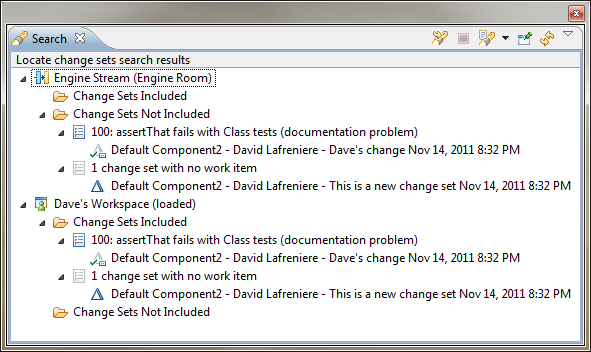
SCM - 결함이 반영되었는 지 검색(locate a change set)

1. 결함을 fix한 change set이 결함에 링크되어 있는 경우에 결함으로 부터 locate a change set를 실행합니다.

Locate change sets action is now available for a work item

2. 해당 결함이 여러개의 change set과 결함 하위에 여러 타스크 작업이 있는 경우에는, 검색할 change set를 선택합니다.

2 streams don't contain the changes, one stream contains some of them

3. 이제는 결함에 관련된 change set이 반영되었는 지 검색 대상을 지정합니다. 스트림이 주 타겟이 될 수 있습니다. 즉 릴리즈 3.0 스트림에 반영되었는 지, 릴리즈 2.1 릴리즈 2.2 등에 백포팅되었는 지 등을 알아보기 위해 해당 스트림을 검색 대상으로 지정합니다.

Hierarchical view

4. 검색결과를 통해 반영된 change set과 반영되지 않은 change set를 살펴보고 조치를 취합니다.

search_view.png